[Canvas] Canvas Particle System
Canvas 是一個畫布系統,透過物件導向的程式設計,我們可以製作出隨機生成的粒子系統,因應農曆兔年,我試著將粒子系統改為紅色,讓每個粒子物件之中會有update、draw、text的方法(也可以自己增設),製作出賀年動畫。
HTML
在body裡面新增 canvas 元素,不給定寬高(width, height),透過 css、javascript 進行調整
<body>
  <canvas id="canvas1"></canvas>
</body>
CSS
設定為絕對定位,寬高和母層元素一樣,固定在左上角(top: 0; left: 0;)
#canvas1 {
  position: absolute;
  background: #000;
  width: 100%;
  height: 100%;
  top: 0;
  left: 0;
}
JavaScript
先抓取 canvas 元素,並指定要以 2d 的方式作畫,存成ctx常數,所有畫作的方法都要由此呼叫。
const canvas = document.getElementById("canvas1");
const ctx = canvas.getContext("2d");

// 設定為全螢幕的寬高
canvas.width = window.innerWidth;
canvas.height = window.innerHeight;
Particle Class
建立主要的粒子物件,constructor內可帶入參數,=後面為未帶入時的預設值,每個粒子的顏色透過hsl color定義,隨著建立的hue上升而有所變化
class Particle {
  constructor(
    x = Math.random() * canvas.width,
    y = Math.random() * canvas.height,
    size = 5,
    speed = 3
  ) {
    this.x = x;
    this.y = y;
    this.size = Math.random() * size + 1;
    this.speedX = Math.random() * speed - 1.5;
    this.speedY = Math.random() * speed - 1.5;
    // hsl(hue, saturation, lightness)
    this.color = `hsl(${hue}, 100%, 40%)`;
    this.textColor = `hsl(${hue}, 100%, 65%)`;
  }
  // 呼叫update函式時,粒子的座標會移動,size會縮小,直到0.1
  update() {
    this.x += this.speedX;
    this.y += this.speedY;
    if (this.size > 0.2) this.size -= 0.1;
  }
  // 在給定的座標滑出圓形的粒子(ctx的內建arc方法)
  draw() {
    ctx.fillStyle = this.color;
    ctx.beginPath();
    ctx.arc(this.x, this.y, this.size, 0, Math.PI * 2);
    ctx.fill();
  }
  //
  text() {
    ctx.fillStyle = this.textColor;
    ctx.fillText("兔年快樂", canvas.width / 2 - 120, canvas.height / 2 + 30);
    // 因為前面定義ctx.font = "60px Lato"; 所以fillText的x, y 要做些調整才能讓"兔年快樂"的字樣置中
  }
}
Init random Particles
有了粒子系統之後,我們先隨機製造出 1000 顆粒子
const particlesArray = [];
function init() {
  for (let i = 0; i < 1000; i++) {
    particlesArray.push(new Particle());
  }
}
init();
Draw Particles
產生了粒子群之後,試著將他們畫在 canvas 上面
function handleParticles() {
  for (let i = 0; i < particlesArray.length; i++) {
    particlesArray[i].draw();
    particlesArray[i].update(); // 粒子會縮小並移動位置
    particlesArray[i].text();
    // 當size小於0.3時,將該粒子刪除
    if (particlesArray[i].size < 0.3) {
      particlesArray.splice(i, 1);
      i--;
    }
  }
}

handleParticles();
Animate Particles
讓這 1000 顆粒子畫在畫布上面,並透過requestAnimationFrame重複執行animtate的函式
const runAnimation = {
  value: true,
}; // 控制繪畫與否

function animate() {
  if (runAnimation.value) {
    ctx.fillStyle = "rgba(100, 0, 0, 0.01)"; // 此行很關鍵,透過透明度很低的遮罩可以讓粒子的軌跡顯示在畫面上
    ctx.fillRect(0, 0, canvas.width, canvas.height); // 將遮罩蓋上去
    handleParticles(); // 調動Particles的方法們
    hue++; // 每次作畫時,hue都會增加
    if (hue > 30) hue = 0; // 我只想要紅色跟偏黃的紅色,所以當hue超過30,會回到原本的紅色
    console.log("trigger");
    requestAnimationFrame(animate); // animate函式快結束時再次執行animate函式
  }
}

animate();
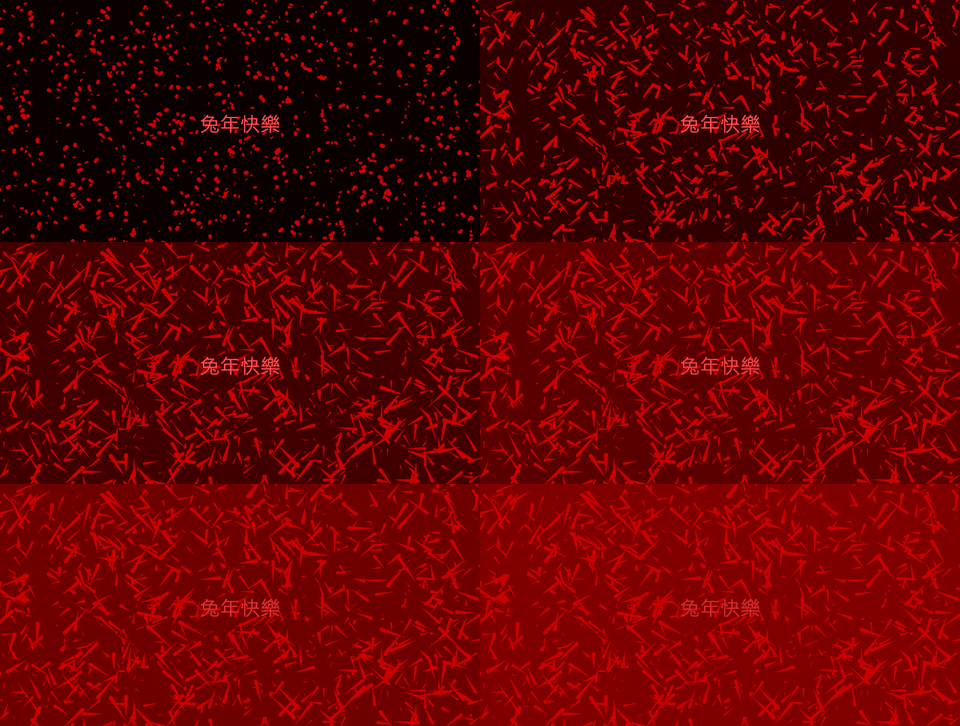
如此一來,就完成自動的 1000 顆粒子版本的兔年快樂!
Mouse movement
接著,我們要在滑鼠移動的地方製作出粒子,先創造出mouse物件儲存滑鼠的座標
const mouse = {
  x: undefined,
  y: undefined,
};
建立handleMouseMove函式,並在mousemove監聽器觸發時執行
function handleMouseMove(event) {
  mouse.x = event.x;
  mouse.y = event.y;
  for (let i = 0; i < 50; i++) {
    particlesArray.push(new Particle(mouse.x, mouse.y));
  } // 每次滑鼠移動都會新增50顆粒子在滑鼠的座標上,不用擔心粒子會越存越多,因為他們每次調用update方法時,size會縮小,直到小於0.3時就會刪除。
}

window.addEventListener("mousemove", handleMouseMove);
而因為 animate 函式會不斷重複,所以滑鼠移動時不斷產生粒子,我們再加入點擊 canvas 的監聽器,來停止作畫
canvas.addEventListener("click", function () {
  runAnimation.value = !runAnimation.value;

  if (runAnimation.value) {
    window.addEventListener("mousemove", handleMouseMove);
    animate();
  } else {
    window.removeEventListener("mousemove", handleMouseMove);
  }
});
結論
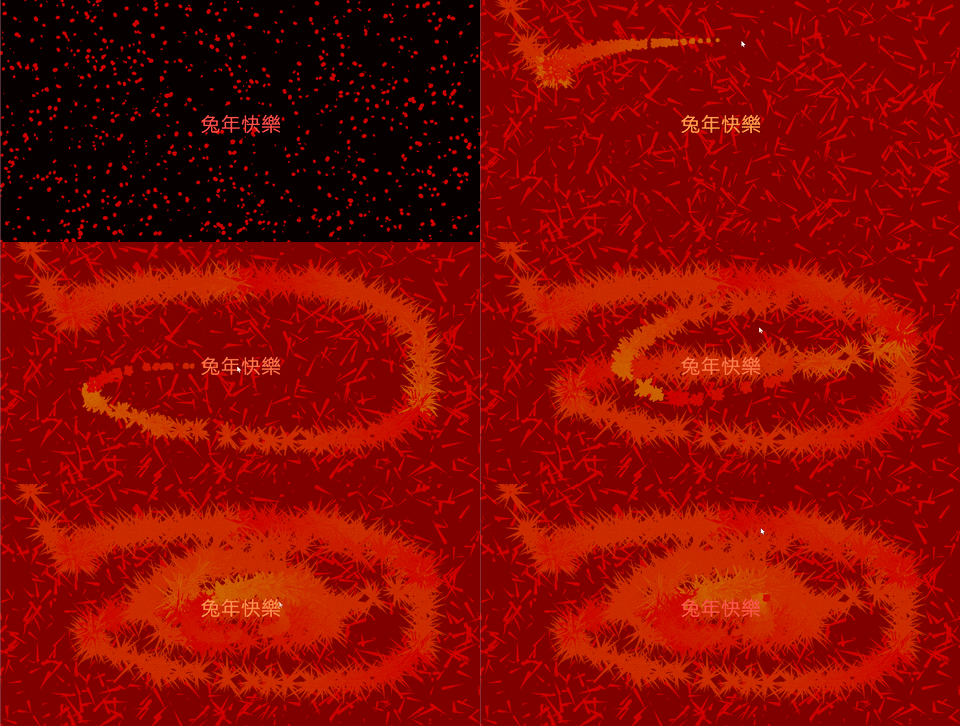
如此一來,你就可以完成以下的作品,透過滑鼠移動、點擊來創造不同的粒子效果!